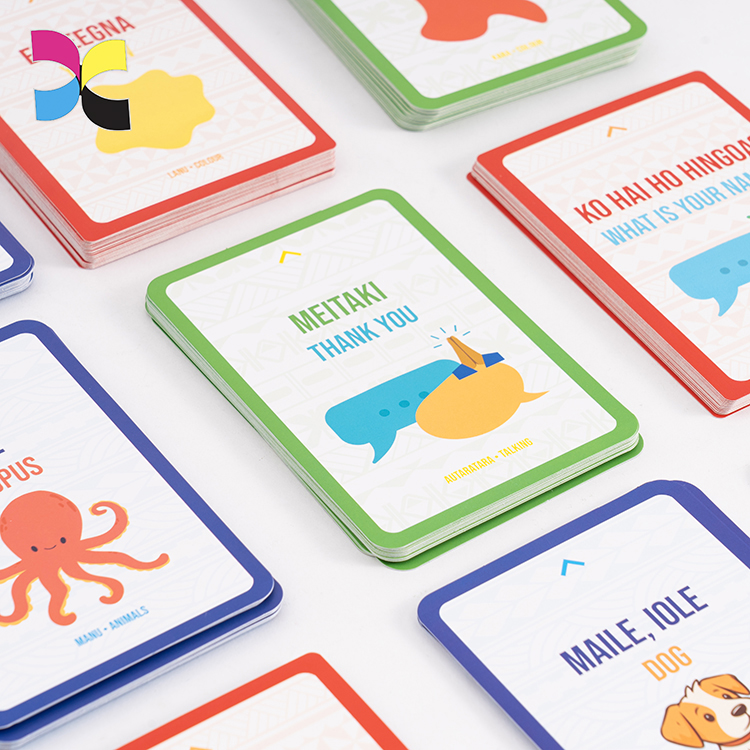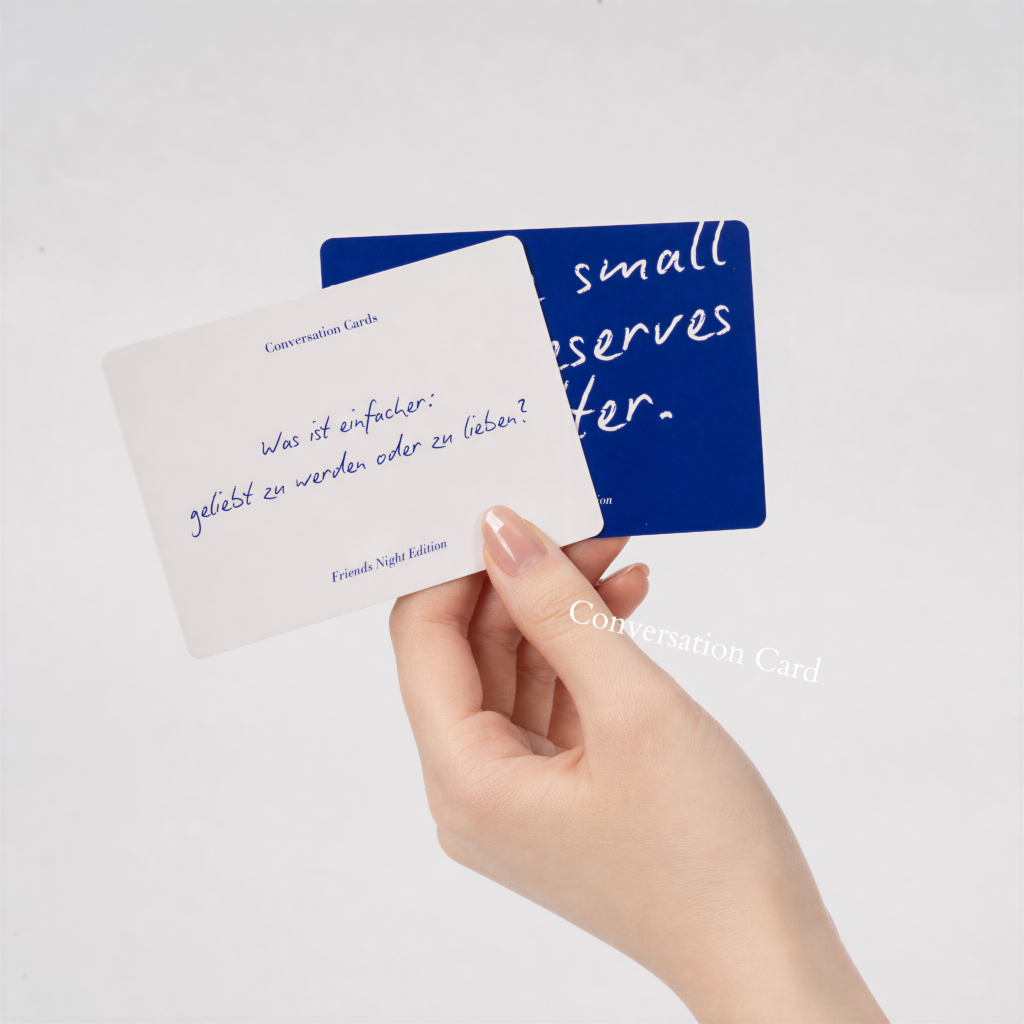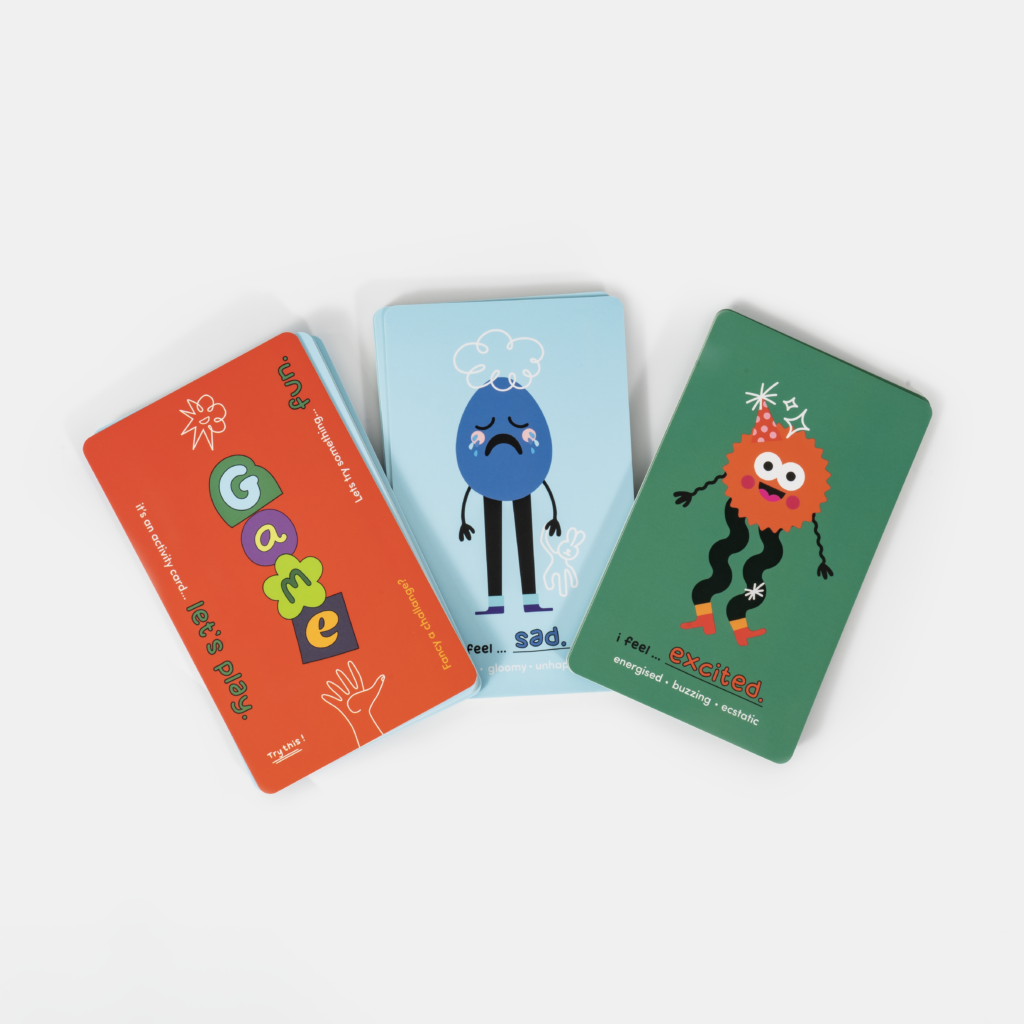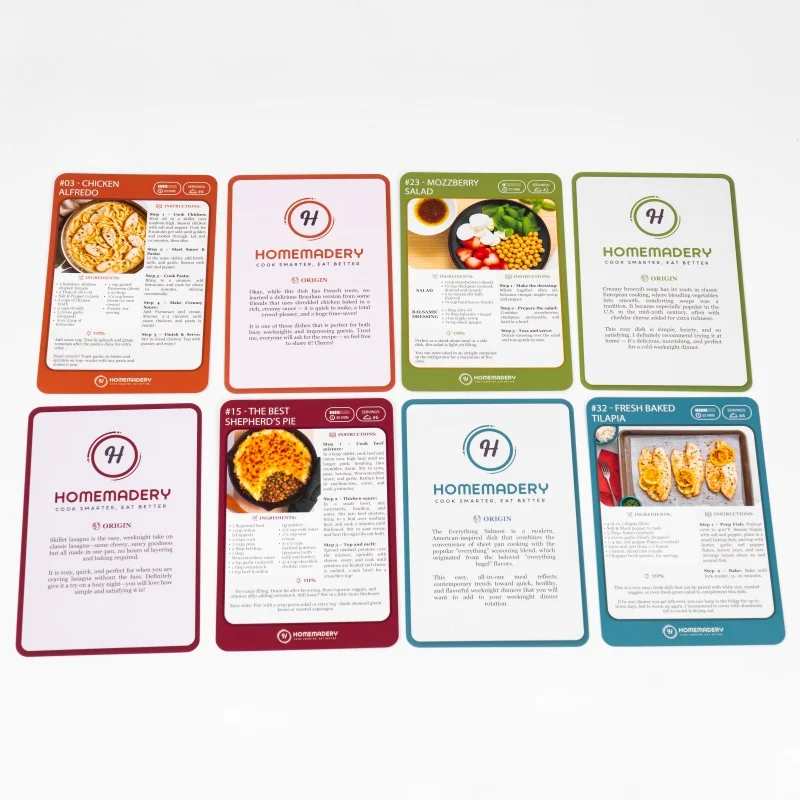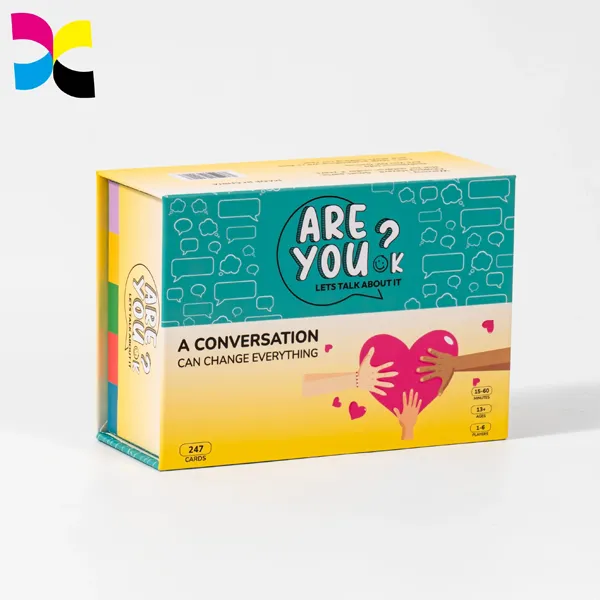
File problems are among the most common reasons card printing projects get delayed. A layout that looks correct on screen can reach the press with the wrong dimensions, missing bleed, or colors that printing inks cannot reproduce.
This trading card printing file setup follows the requirements published on our support pages. It covers finished size, bleed and safe zone, resolution, color mode, front and back pairing, fonts, export format, and finish layers.
Confirm the Finished Card Size First
Every file starts from the finished card size, meaning the dimensions after trimming. Set the canvas to that size before adding bleed or placing artwork, because correcting a wrong canvas later usually means rebuilding the layout.
These are the stock sizes listed on our card size reference, with the corner radius cut by default.
| Card type | Finished size | Default corner radius |
|---|---|---|
| Poker (standard) | 63 × 88 mm | R3 or R5 |
| Bridge (narrow) | 57 × 89 mm | R4 |
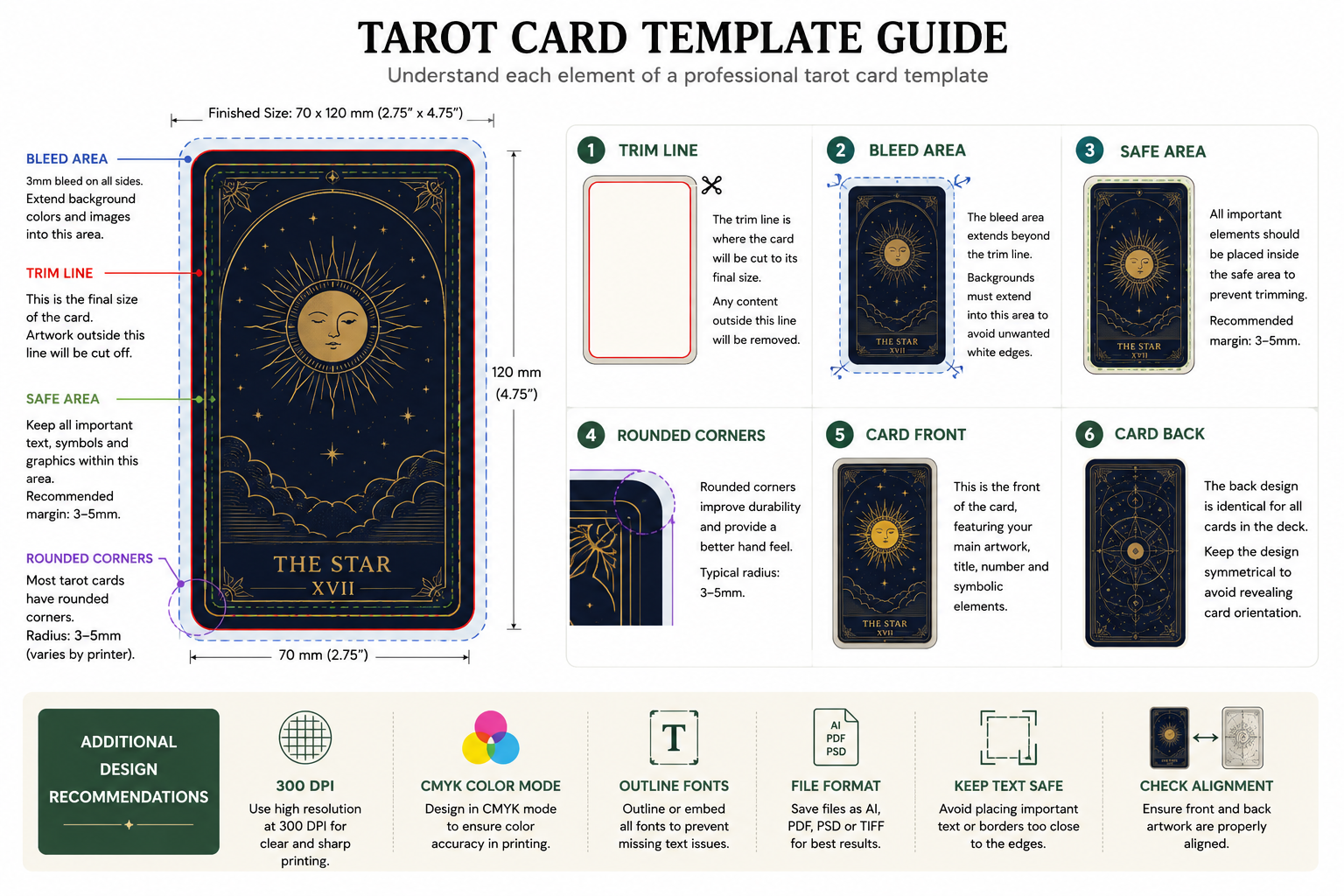
| Tarot | 70 × 120 mm | R6 |
| Flashcard | 77 × 127 mm | R5 |
| Mini | 44 × 64 mm | R3 |
Poker size covers most trading and game card projects, and our trading card size overview explains how each format handles in play. Tarot size is popular for oracle decks, and the tarot card size reference lists its dimensions in full.
Square 100 × 100 mm and other custom dimensions are available on request, so settle the size before the layout begins. Front and back must share the same finished size and the same corner radius. Our card size page states the artwork rule directly: finalize size and radius before applying bleed, trim, and safe-area guides.
Add Bleed and Respect the Safe Zone
Bleed is the artwork that extends past the trim line. Any background color, pattern, or illustration meant to reach the card edge must run into that area. Cutting shifts slightly from sheet to sheet, and bleed stops that shift from exposing an unprinted white edge.
Our file setup page asks for 3 mm of bleed on every side. On a 63 × 88 mm poker card, the canvas becomes 69 × 94 mm once that bleed is added. The outer strip trims away and leaves the artwork flush with the edge.
The safe zone works inward from the trim line. Keep text, logos, card numbers, and key artwork 3–5 mm inside it, the range our support page specifies.
Rounded corners make that margin more important. A die-cut curve removes more of each corner than a straight trim, so an element near a corner can be clipped even when it looks safe on screen.
One layout habit causes visible defects: narrow uniform borders. Our support page warns against them, because normal die-cutting movement can make a thin, even border look uneven around the card.
Set Resolution and Convert to CMYK
Supply artwork at 300 DPI at the final print size, the resolution stated on our file setup page. An image downloaded from a website is usually screen resolution, and it prints soft at card size. Enlarging a small file cannot recover detail that was never captured.
Check pixel dimensions rather than the DPI figure alone. A 63 × 88 mm card at 300 DPI works out to about 744 × 1,039 pixels. Add the 3 mm bleed and the canvas reaches roughly 815 × 1,110 pixels.
Color mode is the second hard requirement. Monitors display RGB, which holds brighter colors than printing inks can reproduce. Presses build images from cyan, magenta, yellow, and black, so our support page asks for CMYK before export.
Highly saturated blues, greens, and oranges shift the most during conversion. Converting early lets you adjust the result while it is still on your screen, instead of discovering the change on a press sheet.
Where a deck must match a brand color or an earlier run, conversion should follow a defined profile rather than a default setting. The International Color Consortium publishes the profile specification used across the printing industry for that exchange.
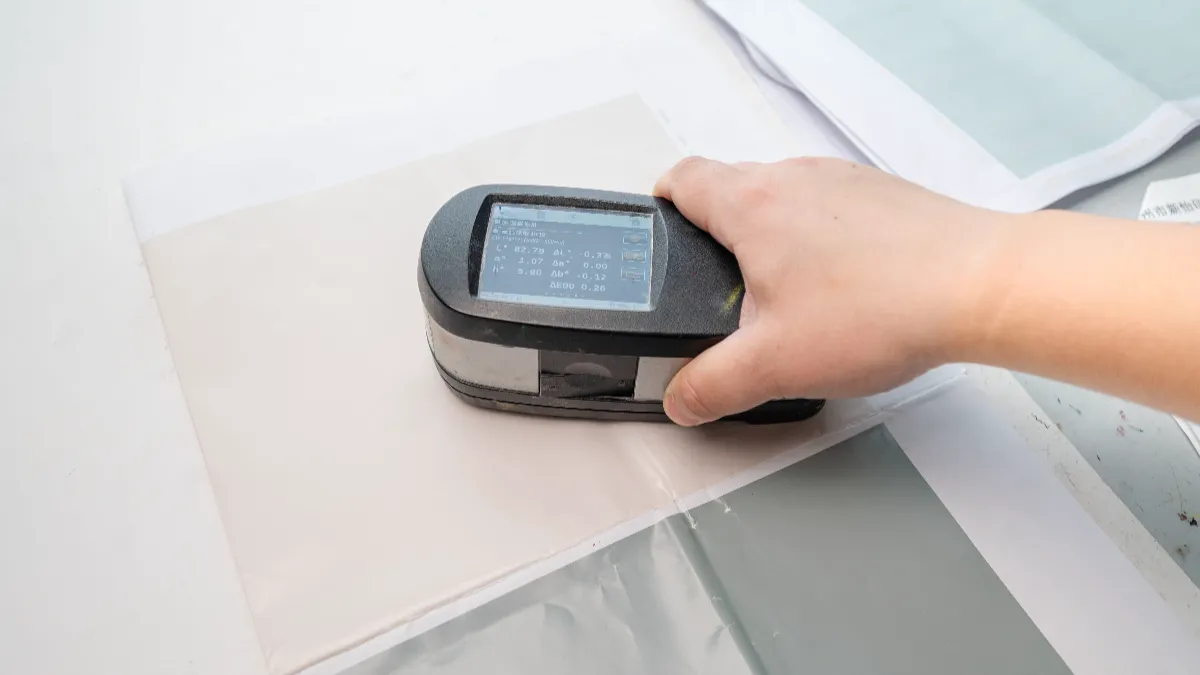
Ask which board the run will print on, because the same file reads differently on coated and uncoated stock. Our color management guide covers that interaction in more depth.
Proofing has limits. A digital PDF proof checks layout, text, image placement, card order, and dieline alignment, and our sampling page notes that it does not show final color or paper feel. Order a physical sample when color drives the design.
Organize Card Fronts and Backs
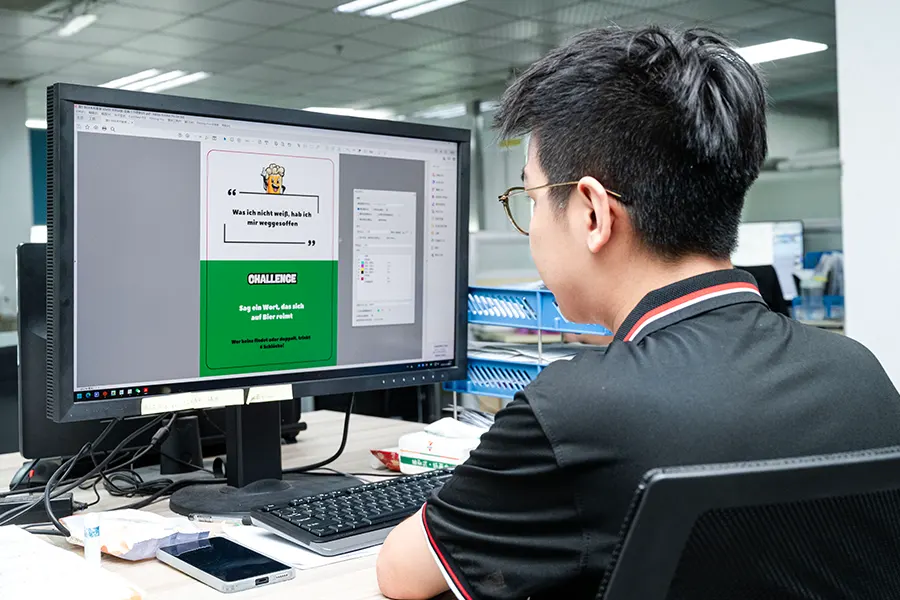
Two organizing methods cover most projects. When every card has a unique back, keep its front and back in one document on consecutive pages. When the deck shares one back design, supply a single back file and one file per front, which is the usual route for game card printing.
Number the faces consistently and keep fronts and backs in matching order, as our file setup page requires. Readable names such as Card-01-Front and Card-01-Back remove most guesswork, and a short reference sheet listing every card number gives prepress something to check against.
On a larger custom playing card manufacturing project, confirm the pairing method before exporting. Different production routes handle the same artwork differently, and the file structure should match the one used for your deck.
Educational decks follow the same structure. Our flashcard product page lists the sizes we cut, and the practical guide to card deck sizes helps you choose between them.
Handle Fonts and Choose the Export Format
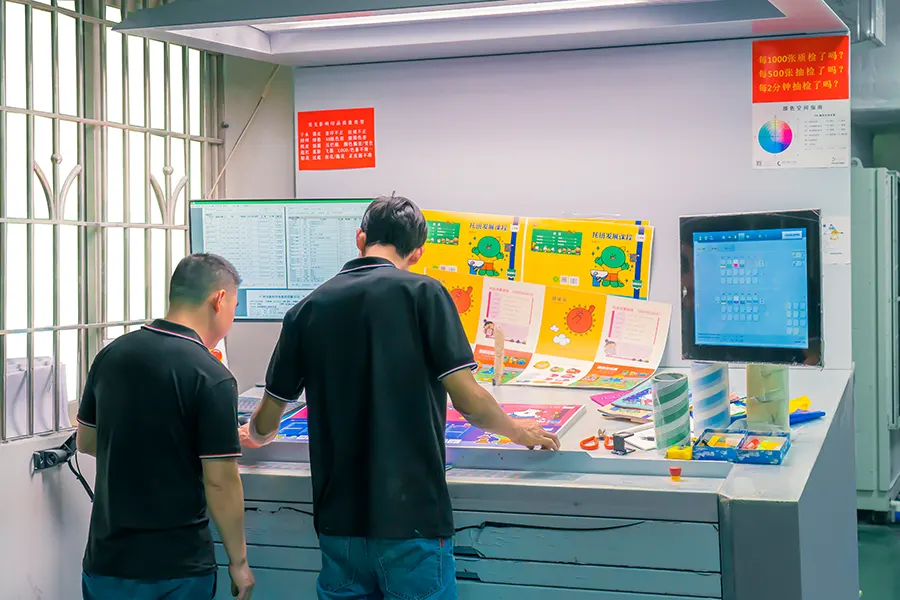
Fonts cause two kinds of trouble: missing fonts and unrenderable fonts. When a font file is absent, the prepress system substitutes another typeface and changes spacing and line breaks. Our file setup page asks you to outline or embed every font before export.
Outlining is the more reliable option. In Illustrator, select the text and choose Type → Create Outlines. Save a working copy with live text first, since outlined text cannot be edited again.
Small type and hairline rules are the first things to disappear on a press sheet, particularly on textured linen finish stocks. Keep body text comfortably large, give rules real weight, and set reversed white text bold enough to survive ink spread.
For format, the support page accepts PDF, PSD, and AI. PDF is the most portable because it carries size, bleed, and color setup in one file. In Photoshop, package the linked images so nothing is missing at prepress.
PDF/X, the print-exchange subset of PDF described by the PDF/X reference, exists for the same reason: it requires embedded fonts and CMYK or spot color content. Our prepress team can confirm which variant suits your artwork before you export.
Prepare Files for Special Finishes
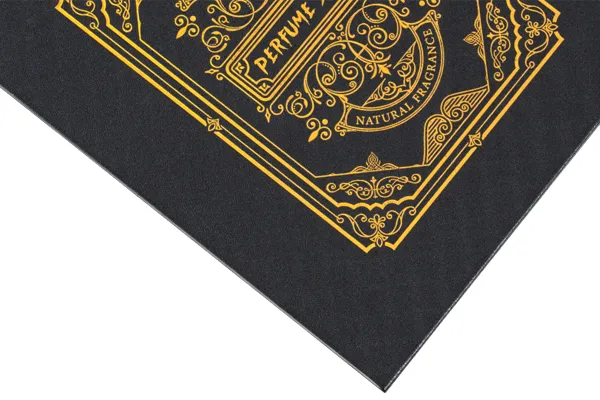
Foil, spot UV, embossing, and debossing each need their own mask or artwork layer, as our file setup page states. The press treats those layers as separate plates, so they must stay isolated from the base artwork and clearly named.
Keep the dieline separate from the printed artwork as well. Non-standard shapes and rounded corners are cut from a die, and production needs the cut path without it merged into the design.
Ask us to confirm the layer structure before export. Finish areas are usually drawn as flat, solid shapes with no gradients or transparency, and a contrasting color makes them easy to tell apart from the printed artwork.
See our finishes reference for the full list and the materials guide for the boards each finish pairs with. Holographic effects follow the same principle, covered in our holographic card printing guide.
Trading Card Printing File Setup Preflight Checklist
Before files leave your desk, confirm each item for every card in the deck:
- [ ] Finished size and corner radius are confirmed, and front and back match
- [ ] Bleed of 3 mm is added on all four sides
- [ ] Text, logos, and key artwork sit 3–5 mm inside the trim line
- [ ] No narrow uniform border relies on exact cut placement
- [ ] Images are 300 DPI at the final print size
- [ ] Color mode is CMYK, converted before export
- [ ] Every font is outlined or embedded
- [ ] Linked images are packaged with the file
- [ ] Card numbering is consistent across fronts and backs
- [ ] The dieline is supplied separately from the print artwork
- [ ] Foil, spot UV, and embossing areas sit on their own layers
- [ ] A flattened reference PDF is included for comparison
A few minutes of checking here prevents a revision cycle later.
Frequently Asked Questions
What file format is best for card printing?
PDF is the most convenient because it carries the page size, bleed, and color setup in one file. PSD and AI are also accepted, as long as fonts are outlined or embedded and linked images are packaged.
How much bleed do card files need?
Our file setup page asks for 3 mm beyond the trim line on every side. That extra area is cut away and keeps the background reaching the finished edge.
Should artwork be RGB or CMYK?
Prepare files in CMYK. Presses print with cyan, magenta, yellow, and black inks, and an RGB file must be converted before printing. Converting yourself keeps the colors predictable.
Can I send a JPG or PNG of my design?
A flattened raster image loses the information prepress needs, including bleed setup, color mode, and editable text layers. Export to PDF, PSD, or AI instead.
Does Xinyi check my files before printing?
Yes. Our team reviews resolution, bleed, safe area, and CMYK setup, then sends a digital PDF proof for approval before printing, as described on our FAQ page.
Final Thoughts
Print-ready artwork is a set of constraints rather than a style. Fix the size and corner radius, add 3 mm of bleed, and keep content 3–5 mm inside the trim. Work at 300 DPI in CMYK, and export PDF, PSD, or AI with fonts outlined.
Finish layers and the dieline stay on their own paths. Run the checklist above, and your trading card printing file setup arrives at prepress ready for a proof rather than a round of questions.
Send Your Files for a Prepress Review